3) Install Home Assistant
Install Home Assistant
Now we use Python to install Home Assistant. Click your Windows button so the Start Menu opens and type the following letters: cmd
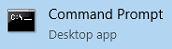 It will find a programme called "Command Prompt" with a black icon like this:
Click the icon to load the black command window.
Type in the following and press return:
pip3 install homeassistant
This will download and install Home Assistant. Once completed, type the following:
py -m homeassistant --open-ui
Once done you can close the black command window. If it has worked, it will have opened your web browser and you can see Home Assistant.
For this part, you need to know your longitude & latitude which you can get here. You will also need your elevation, which can be found here. Finally, you need your timezone, which can be found here.
Now, on your PC you need to navigate to this folder:
c:\users\NAME\AppData\Roaming\.homeassistant\
Replace "NAME" with your login name.
Right click on configuration.yaml and open it with Notepad.
Select all the text and replace it with the following, but make the changes outlined after it.
homeassistant:
name: Home
latitude: 53.123456
longitude: -1.123456
unit_system: metric
time_zone: Europe/London
elevation: 302
discovery:
history:
logbook:
updater:
sun:
frontend:
conversation:
http:
api_password: ABC123
media_player:
tts:
- platform: google
Make the following changes:
longitude, latitude, unit_system (imperial or metric), time_zone, elevation & api_password
You must set an API Password as your system will be accessed from the internet.
Now we use Python to install Home Assistant. Click your Windows button so the Start Menu opens and type the following letters: cmd
It will find a programme called "Command Prompt" with a black icon like this: Click the icon to load the black command window.
Type in the following and press return:
pip3 install homeassistant
This will download and install Home Assistant. Once completed, type the following:
py -m homeassistant --open-ui
Once done you can close the black command window. If it has worked, it will have opened your web browser and you can see Home Assistant.
For this part, you need to know your longitude & latitude which you can get here. You will also need your elevation, which can be found here. Finally, you need your timezone, which can be found here.
Now, on your PC you need to navigate to this folder:
c:\users\NAME\AppData\Roaming\.homeassistant\
Replace "NAME" with your login name.
Right click on configuration.yaml and open it with Notepad.
Select all the text and replace it with the following, but make the changes outlined after it.
homeassistant:
name: Home
latitude: 53.123456
longitude: -1.123456
unit_system: metric
time_zone: Europe/London
elevation: 302
discovery:
history:
logbook:
updater:
sun:
frontend:
conversation:
http:
api_password: ABC123
media_player:
tts:
- platform: google
Make the following changes:
longitude, latitude, unit_system (imperial or metric), time_zone, elevation & api_password
You must set an API Password as your system will be accessed from the internet.
Comments
Post a Comment